Manual
Axon and Soma user guide
Find a topic to see the steps and product screens.
Find Axon instructions by workflow, along with the scope and access requirements for Soma's paid pilots.
Support by operating system
On Linux, analysis functionality is intact, with the only exception being the ability to connect directly to a running Microsoft Excel.
| Features | Windows | Linux |
|---|---|---|
| Audit report verification, ledger analysis, MUS | Supported | Supported |
| Reconciliation schedule creation · ledger and audit report reconciliation | Supported | Supported |
| OpenDART public disclosure inquiry | Supported | Supported |
| MUS ↔ Desktop Excel Live | Supported | — |
| usix-vba Excel Ribbon Add-in | Supported | — |
installation
Download
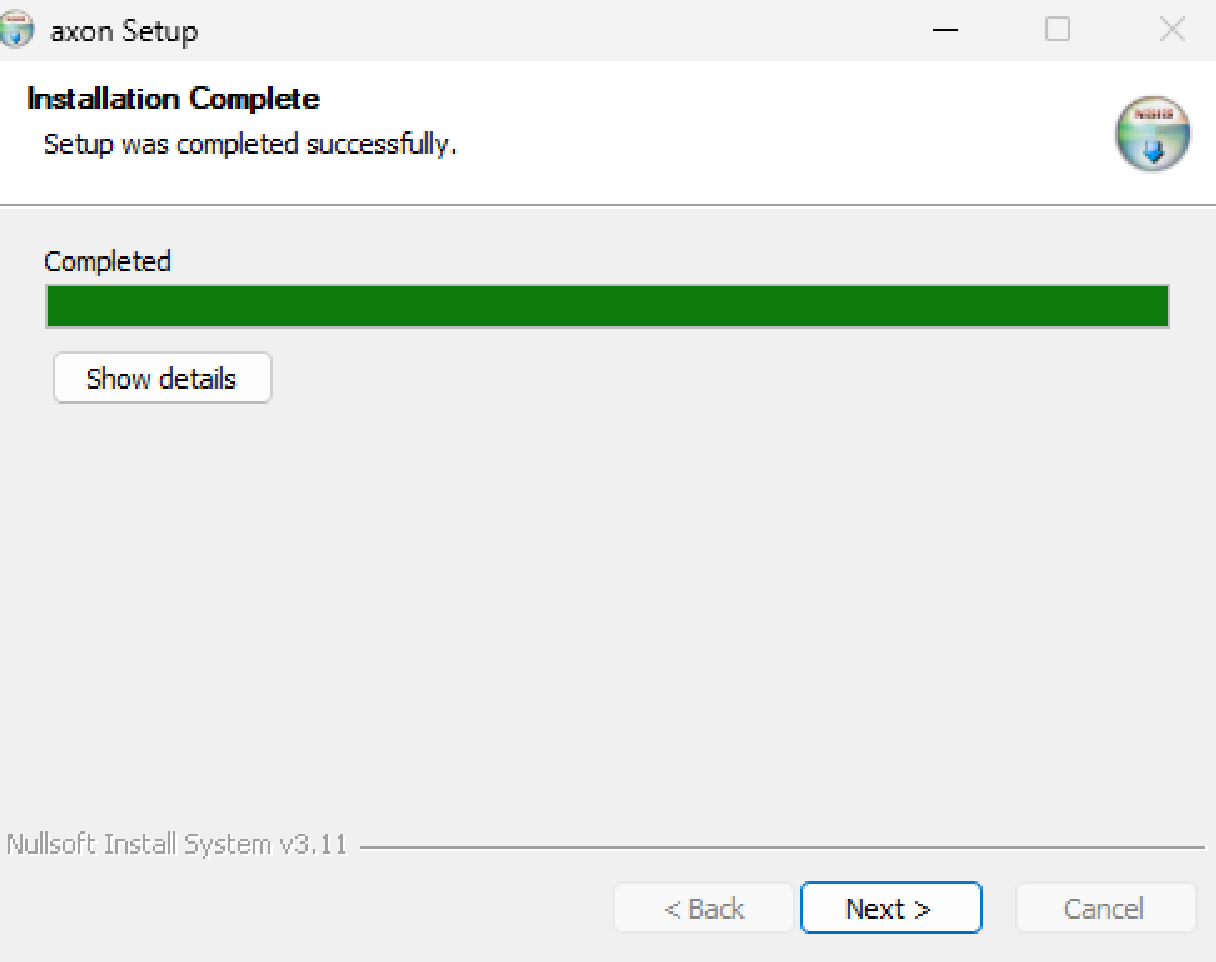
Select the installation file that matches your operating system. The download button will always link to the latest public version.
- 1On Windows, run the .exe installer.
- 2On Linux, give the AppImage file permission to run, then open it.
- 3On Debian or Ubuntu, you can also install the .deb package.
Windows security notice
Windows SmartScreen may show a warning based on a downloaded file's reputation. Signed files can also trigger a warning.
Before installing
Check that the file came from the official website (u-6.xyz) and matches the filename and version listed there. If a warning persists or the source is unclear, stop and contact us before running it.
Starting and updating Axon
Axon checks for new versions when it starts. Choose 'Update now' to install an available update, or 'Later' to keep using your current version.
Getting started
First Run — Agreement to Terms and Conditions and Beta Guide
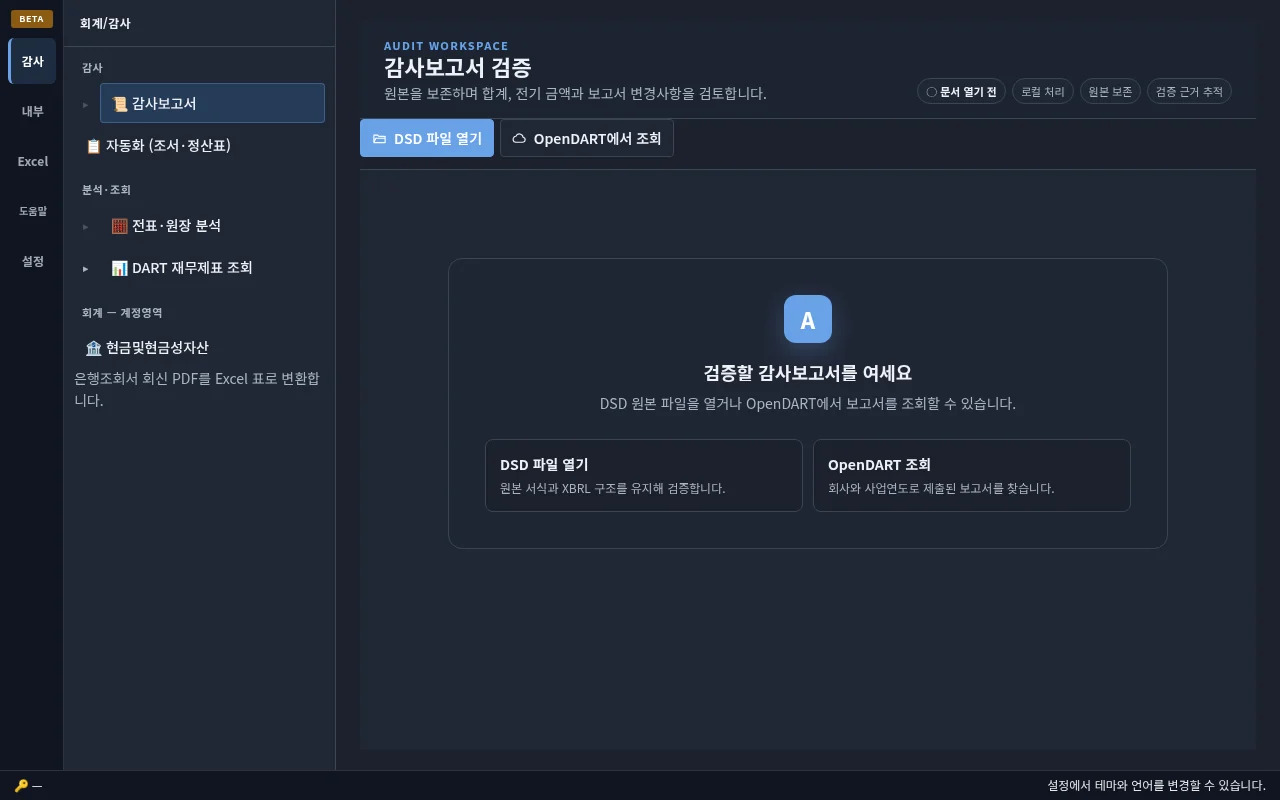
When you run it for the first time, a terms of use guide will open. After reading and agreeing to the full terms and conditions, you will be taken to the main workspace. Axon is currently in beta, so you'll see a BETA badge in the top left corner of your screen.
screen structure
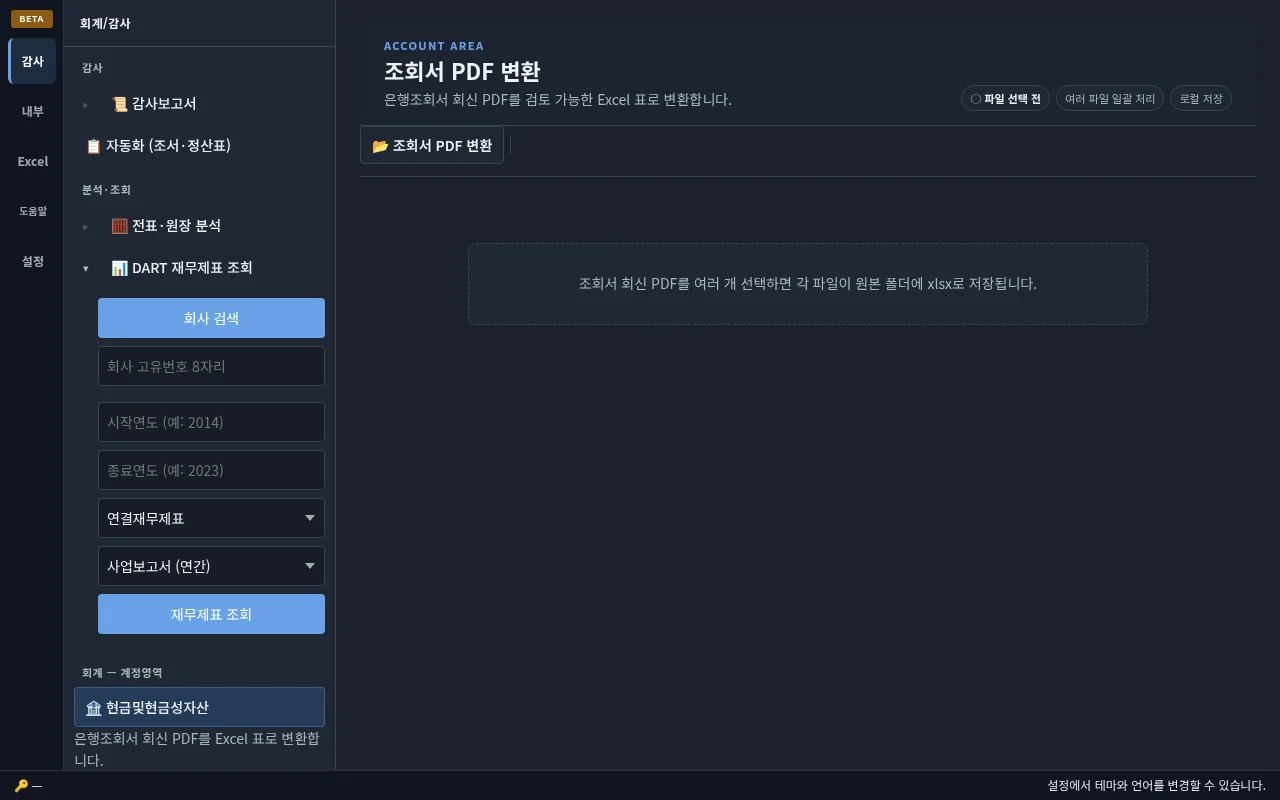
In the left function bar, go to Auditing, Internal Accounting, Excel Tools, Help, Settings. The sidebar of the audit workspace contains audit reports, statements/settlement sheets, document/ledger analysis, DART financial statement inquiry, and account area tools. You can expand or collapse the document list or search conditions by pressing the arrow to the left of the item.
status bar
You can check the OpenDART authentication key registration status in the status bar at the bottom of the screen. Change the screen theme, display language, and font size in the 'General' section of settings.
Feature differences between Windows and Linux
Audit report verification, ledger analysis and MUS sampling are available for Windows and Linux. The Live Roundtrip feature, which connects directly to a running desktop Excel, and the usix-vba Ribbon add-in are Windows only.
Audit report analysis
Load report
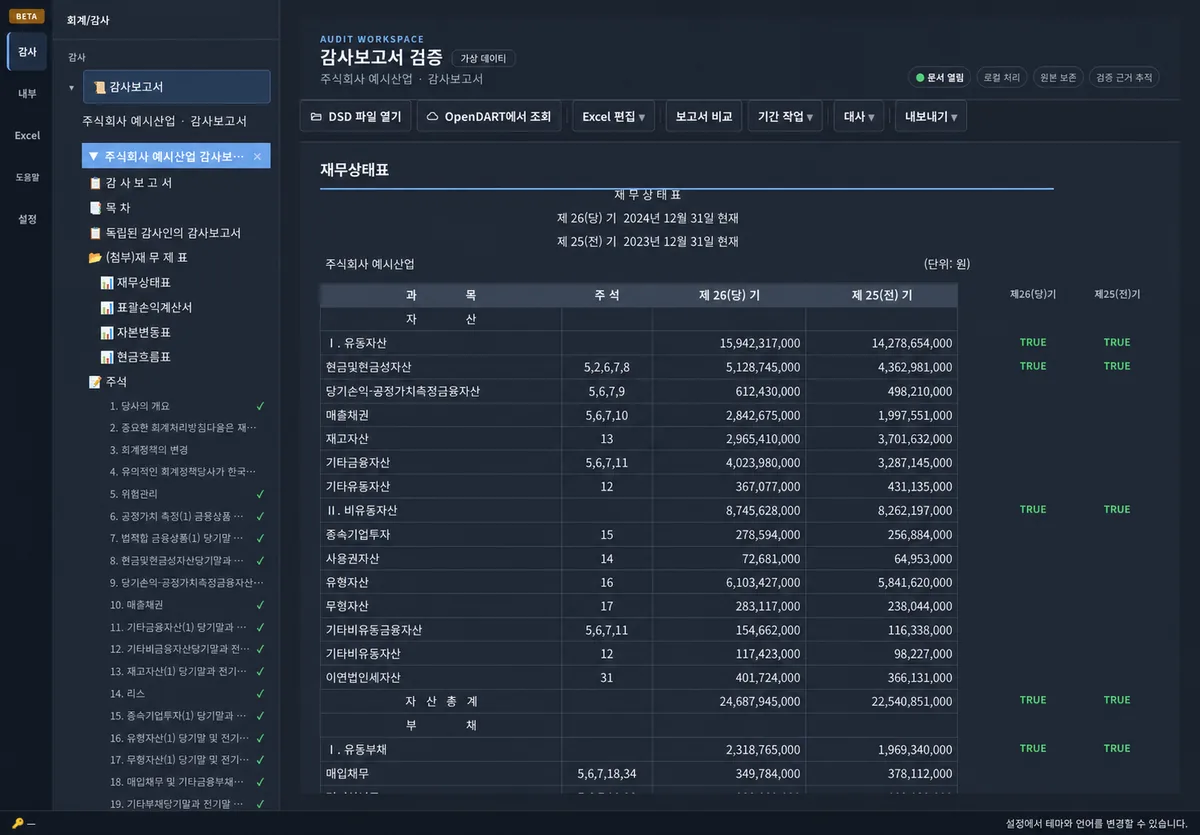
You can open archived DSD files or search public audit reports in OpenDART. When you open a report, the financial statement body and notes appear in the document tree on the left.
- 1Select 'Open DSD File' or 'View in OpenDART'.
- 2Select your company and report.
- 3From the document tree on the left, open the financial statement or note you want to review.
Footing
Recalculate the totals and subtotals displayed in the table to find cells where there are differences. Amounts linked between financial statements, such as cash in the statement of financial position and end-of-period cash in the statement of cash flows, are also compared.
Mid-term (semi-annual/quarterly) report
Semi-annual and quarterly audit and review reports are also recognized. The 4-column profit and loss (accumulated basis) and the structure contained in the consolidated and separate files are distinguished and total verification is performed, as well as inter-statement conversion and annotation roll forward (basic → end of the period). The 'Next Quarterly Base Document' creates a framework for the next interim period of the same base, with dates and prose to be checked by the user.
Text/annotation amount line
Check whether the amount in the body of the financial statement matches the amount in the notes or other financial statements. It also shows unit differences and rounding differences that occur during the display process.
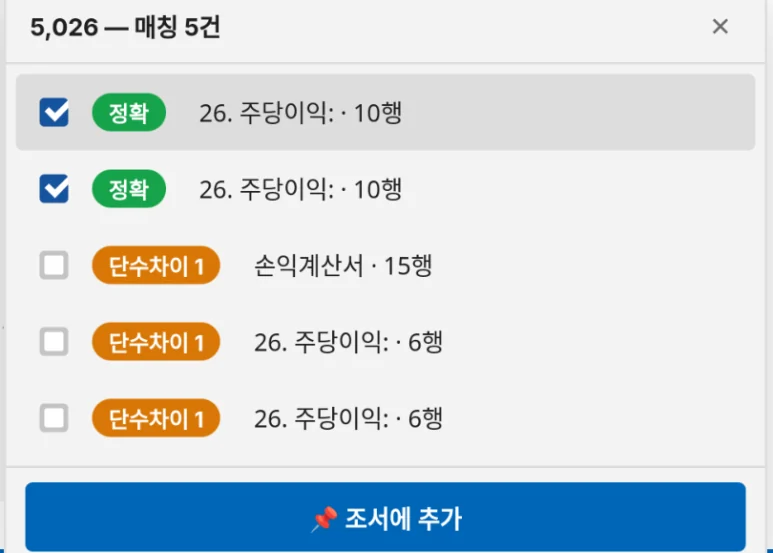
- 1Select the amount you want to check in the text.
- 2Check the corresponding amount and location provided by Axon.
- 3If there is a match, it is marked as 'no problem' and, if necessary, the corresponding cell is specified directly.
Report comparison and prior-period reconciliation
⚖️ Compare two audit reports side by side to see changes, additions, and deletions highlighted in different colors. 📑 Prior-period reconciliation compares the prior-year audit report with the current financial statements, including both the main statements and notes. It can match accounts whose names changed using similarity and amount. The prior-period report is retrieved automatically from OpenDART; if it is unavailable, you can select a .dsd file.

Carryover — Create the next draft
📥 'Carryover from previous period' creates a draft for the next period with the confirmed current period report. Raise all bases in the document by one (27th period → 28th period), and move the amount from the current period column to the previous column. The values in the statement of changes in capital and notes are also carried forward. Since the new basic amount cannot be known for the roll forward/change/decrease table, the form should be left blank, and descriptive content such as date and audit opinion must be edited manually. The results will open in a new tab without changing the original. It also provides protection against accidental overwriting of drafts with existing data.
DSD ↔ Windows Excel Live Editing
Selecting 'Edit with Excel' will open the current report in Excel as it is running. Every time you save (Ctrl+S) in Excel, the changes are reflected on the Axon screen.
- 1First open the DSD report you want to review.
- 2Under 'DSD ↔ Excel', select 'Edit with Excel'.
- 3After editing and saving in Excel, check the cells reflected in Axon.
- 4Review the edits, choose 'Save as DSD' to create a new file, then validate it in DART.
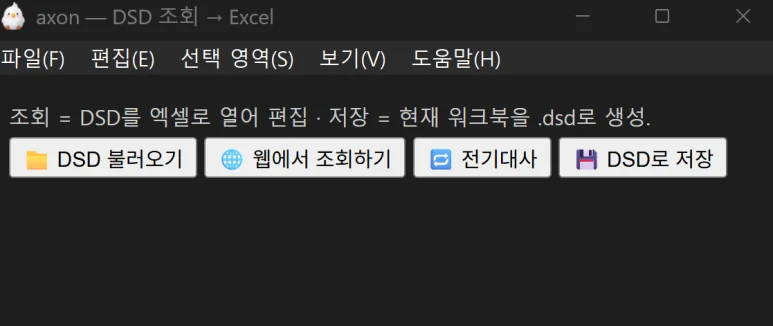
Export an Excel report as DSD
Edit an audit report workbook (.xlsx) exported from Axon, then import it to open your changes in a new report tab. Review the report and export it as DSD.
- 1Save the file you edited in Excel.
- 2Import the Excel file into Axon and review the changes in the new tab.
- 3Choose 'Export' to save a DSD file.
- 4Open the saved DSD in DART Editor and check the edited amounts.
export
When saving to Excel, financial statements and notes are placed on separate sheets. 'Include footing' saves sum-check notes; 'Exclude footing' saves the results without those notes. The current report can be saved as DSD, and report comparison results can be saved as Excel or HTML.
Accounting — Audit tools by account area
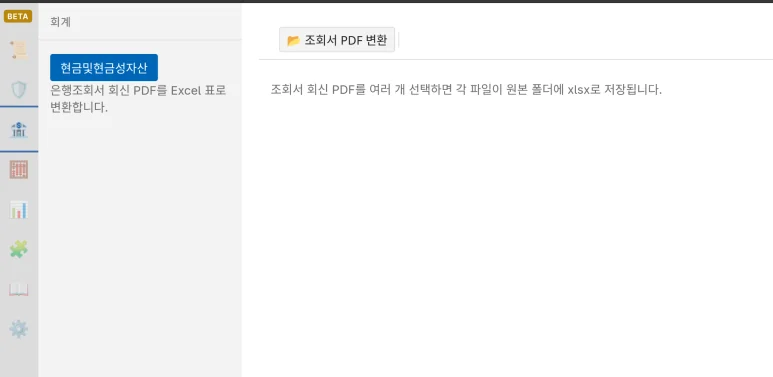
Inquiry form PDF → Excel conversion
You can convert multiple financial institution inquiry replies to Excel at once by selecting 'Convert Inquiry PDF' in the Account area of the Accounting screen. Digital PDF recognizes the cell structure of tables, and scanned copies and PNG/JPG images are processed through character recognition.
- 1In your account area, select 'Convert Inquiry to PDF'.
- 2Select multiple PDF, PNG, or JPG files to convert.
- 3Check the completed list and the Excel results in the source folder.
Reconciliation schedule automation
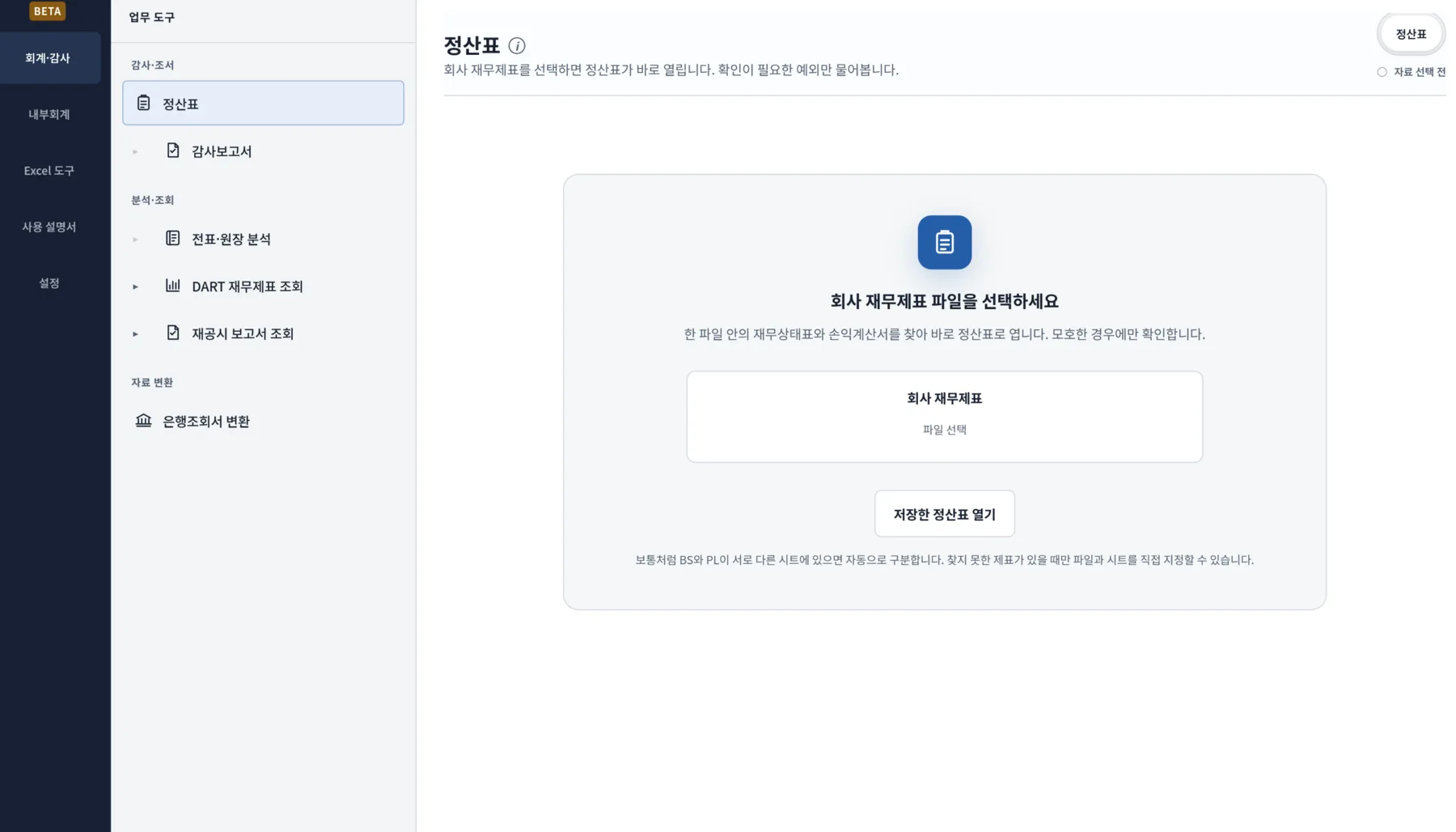
Create a reconciliation schedule from the BS and PL
In the Audit workspace, open Reconciliation under Workpapers & Reconciliation and select the company financial statements. Axon reads the balance sheet (BS) and income statement (PL) to create a schedule where you can review current- and prior-period balances and adjustments by account.
- 1Choose a company financial statement file to open the Excel workbook.
- 2Review the imported BS and PL accounts and their current- and prior-period amounts.
- 3Enter the required correction (debit) and correction (credit) amounts and review the final balance.
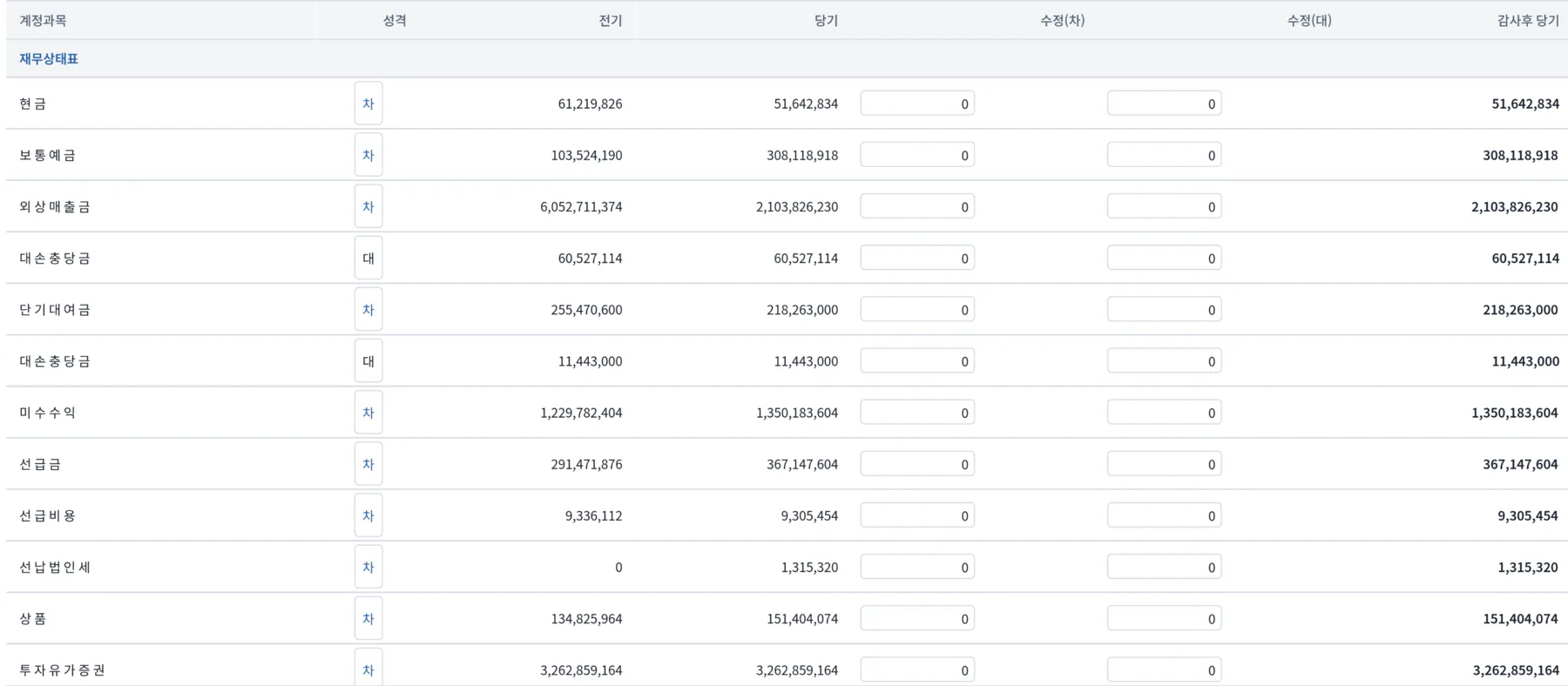
Link the ledger and reconcile each account
Link a ledger to compare each account's final schedule balance with its ledger balance. Axon shows the match status by account and lets you drill into detailed transactions and journal entries for differences.
- 1Select ‘Ledger Connection’ at the top of the reconciliation schedule.
- 2Open the Douzone Smart A ledger file and check the account matching results.
- 3Select the account marked as mismatched to review the difference amount and ledger transactions.
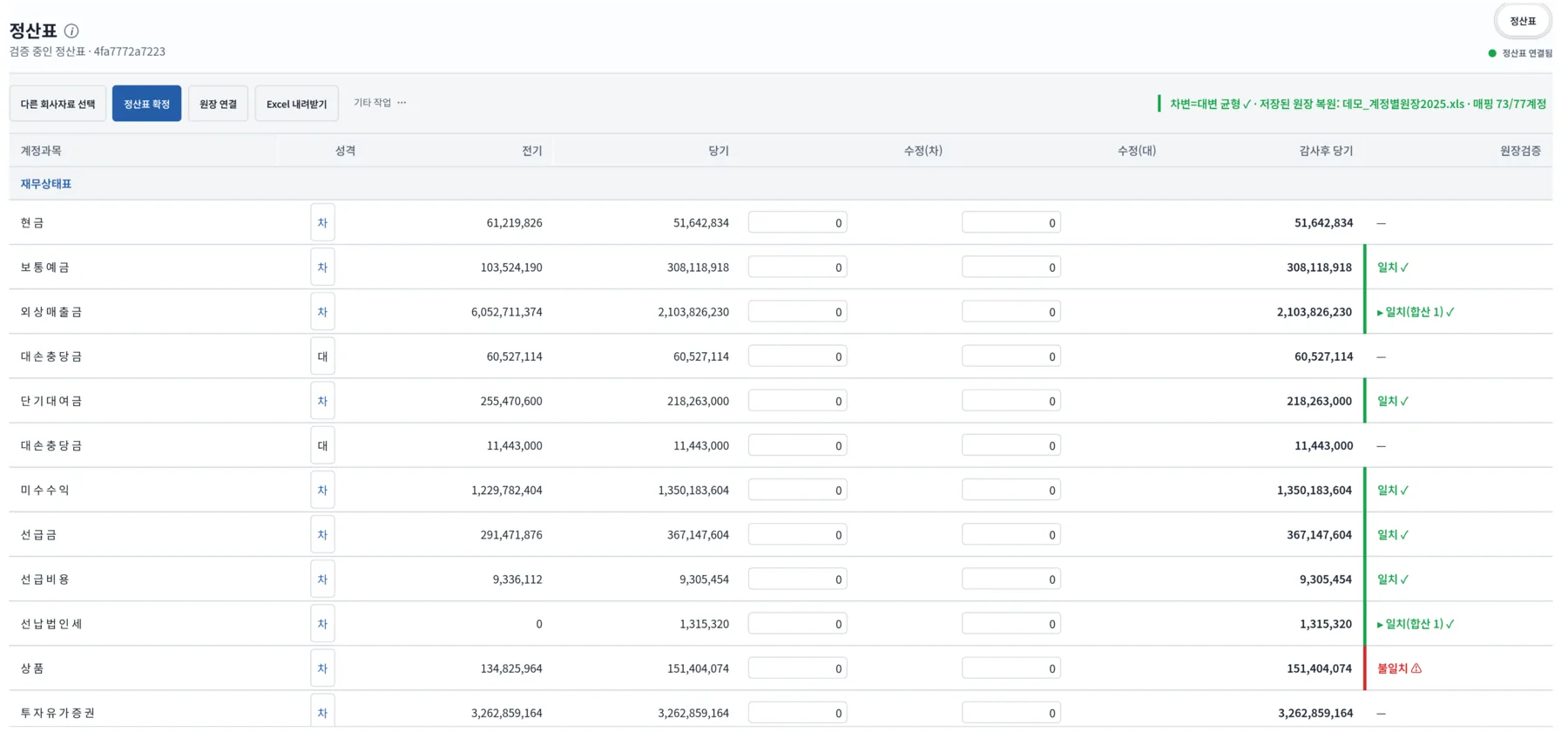
Link the audit report and trace differences
Link an audit report to match report line items with schedule accounts and identify amount differences. When a ledger is also linked, you can trace each difference to its underlying transactions in the same workflow.
- 1In ‘Audit Report Connection’, select the report you want to review.
- 2In the differences list, review the report line item, its linked schedule account, and the difference amount.
- 3Open the 'Ledger View' to see the transactions that make up the difference.
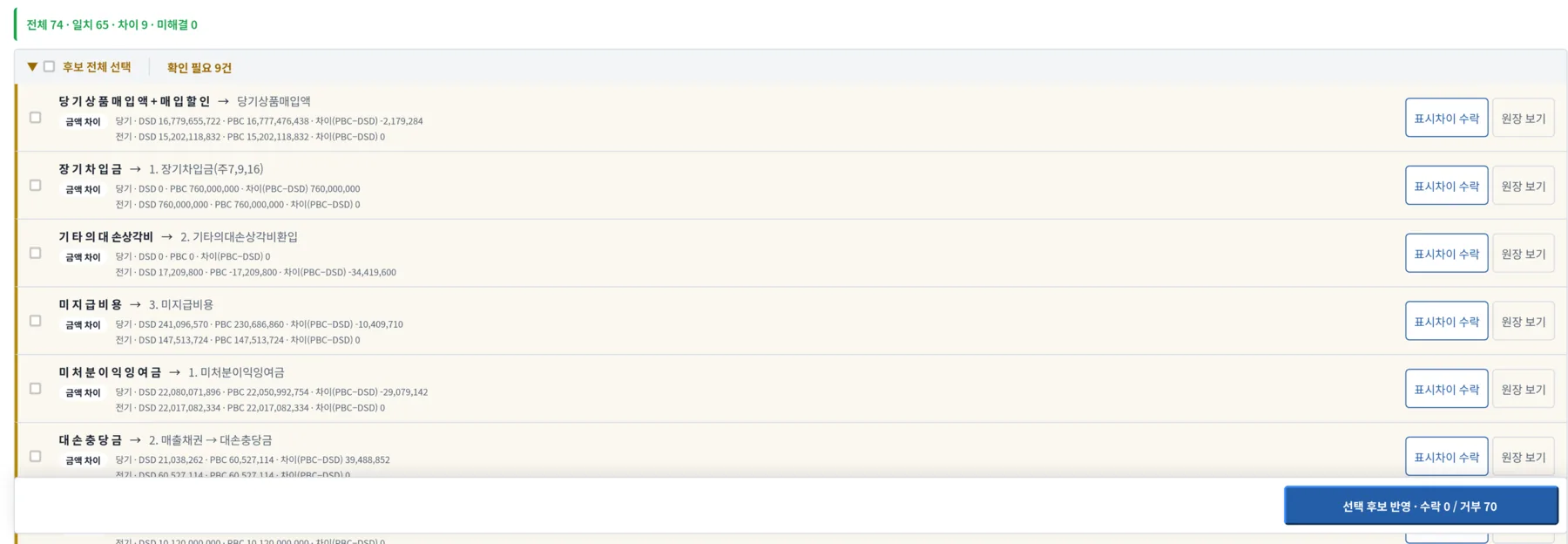
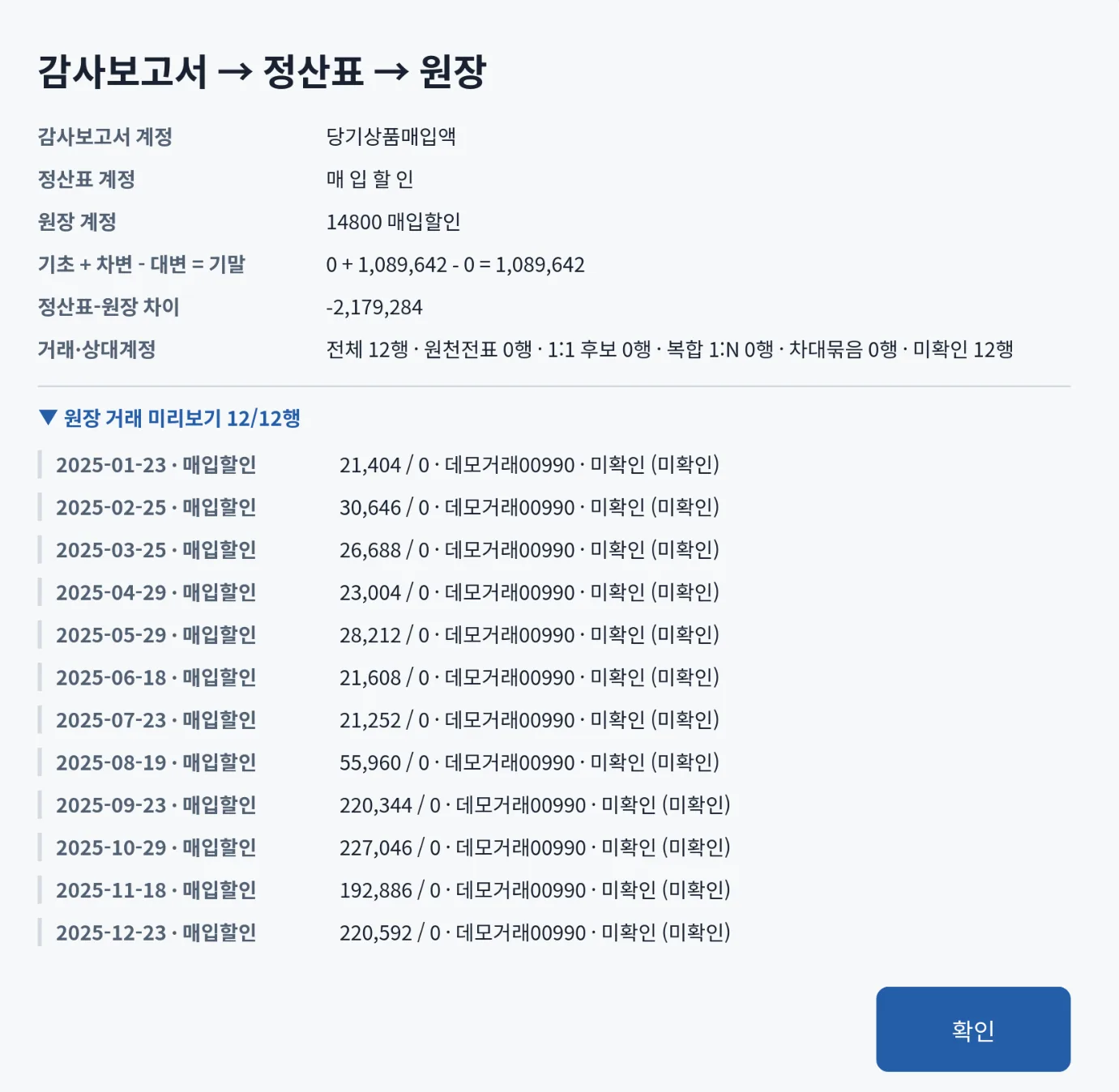
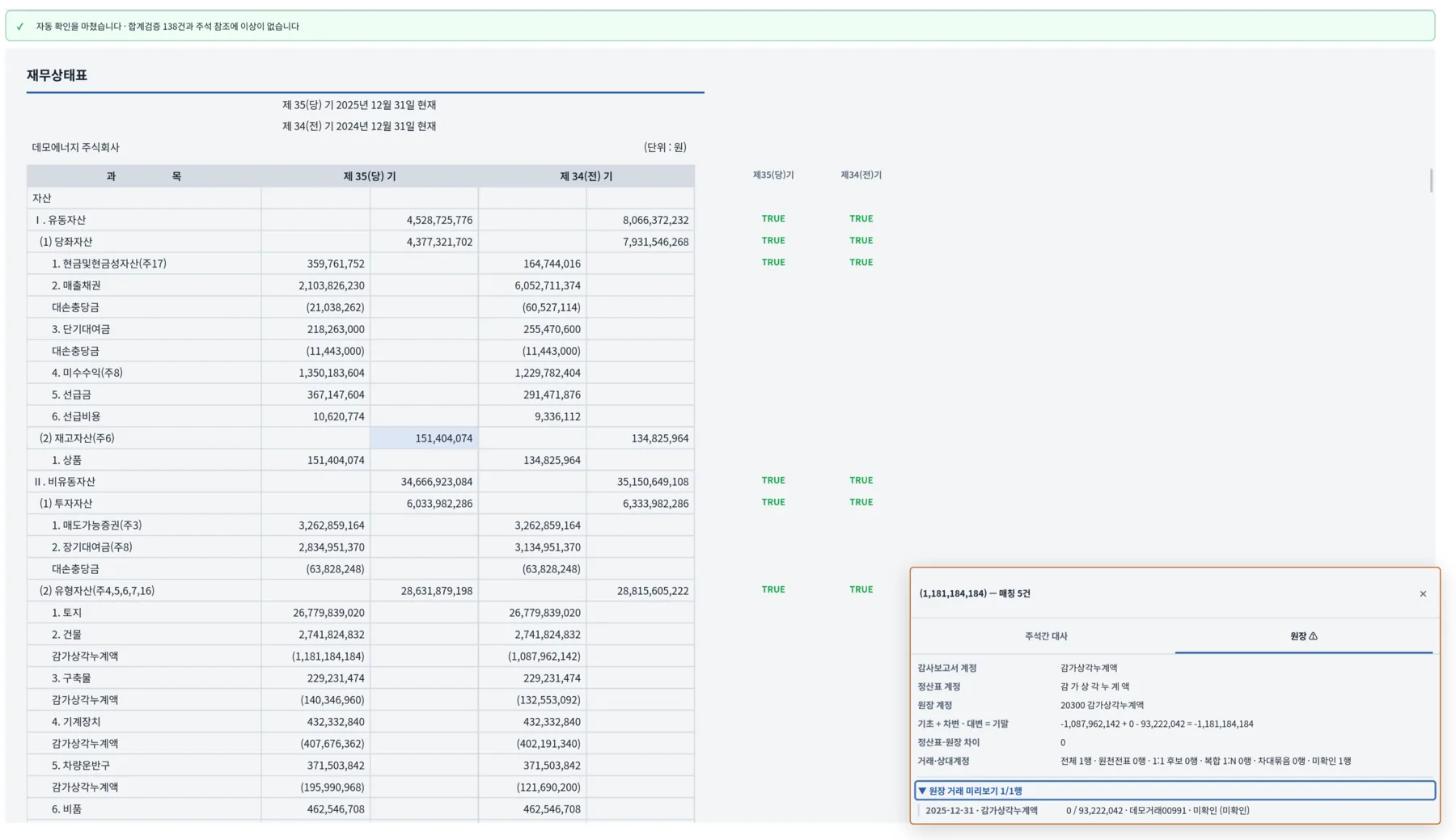
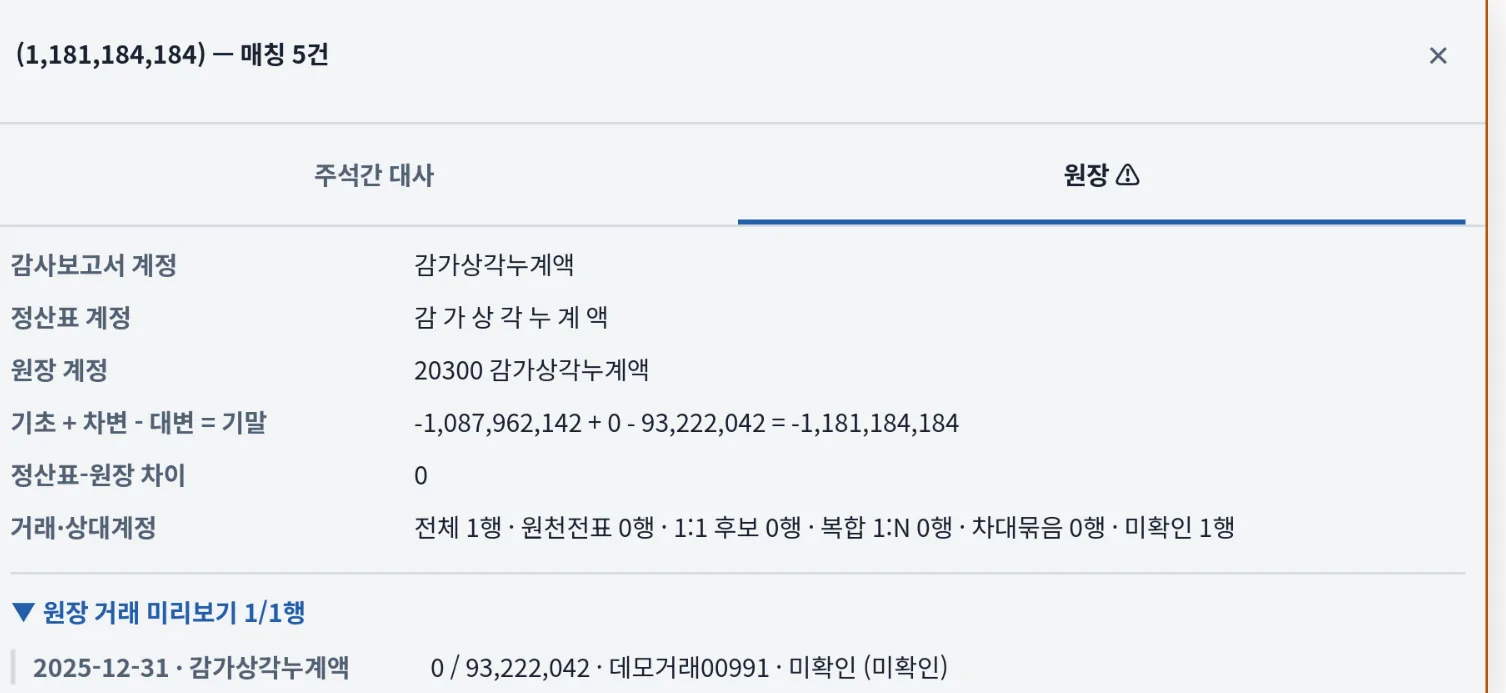
Review ledger details from the audit report
Once the schedule, ledger, and audit report are linked, you can open the related ledger details directly from the audit-report review. Trace a reported amount to its schedule accounts and underlying transactions in either direction.
Save reconciliation results to Excel
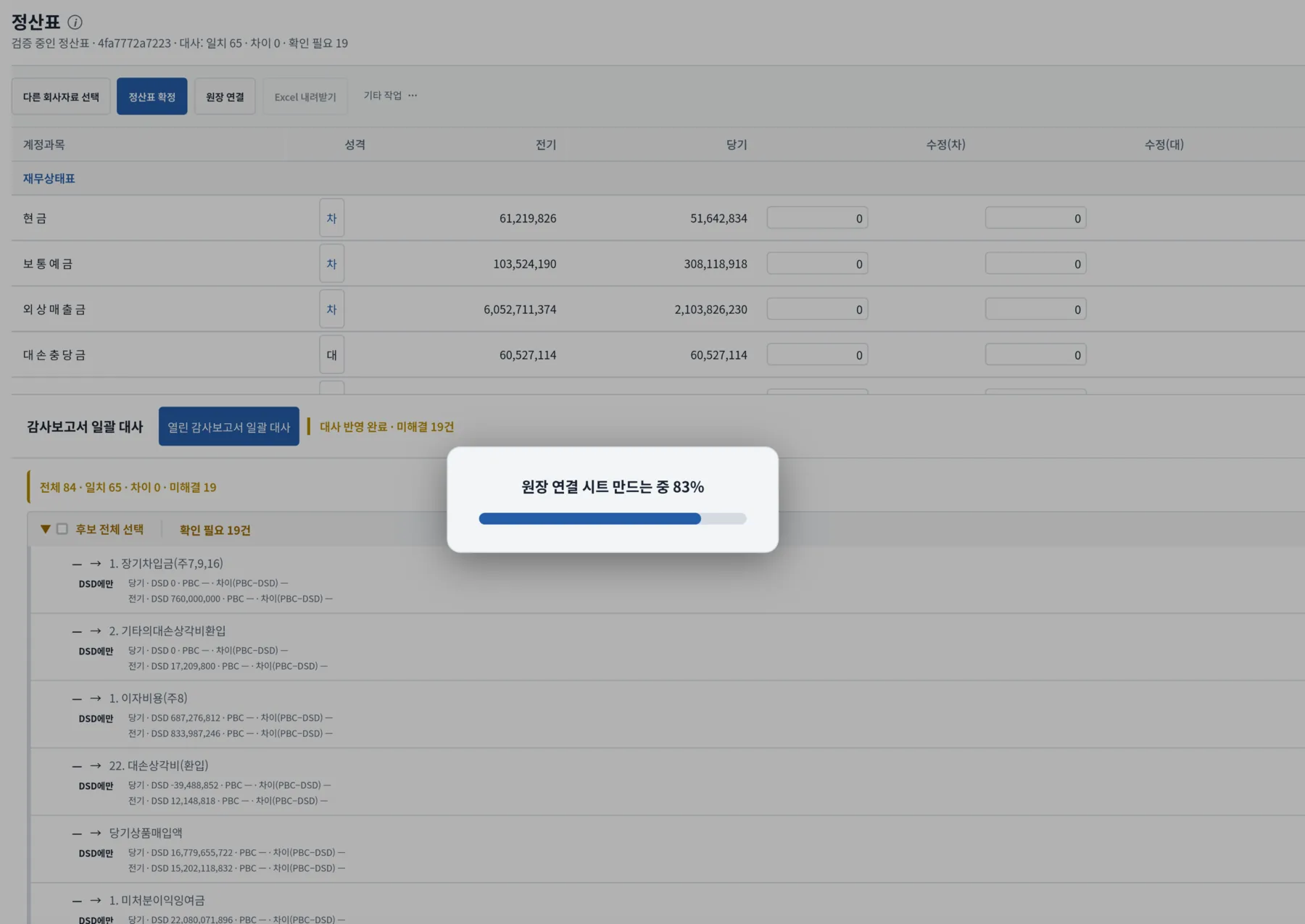
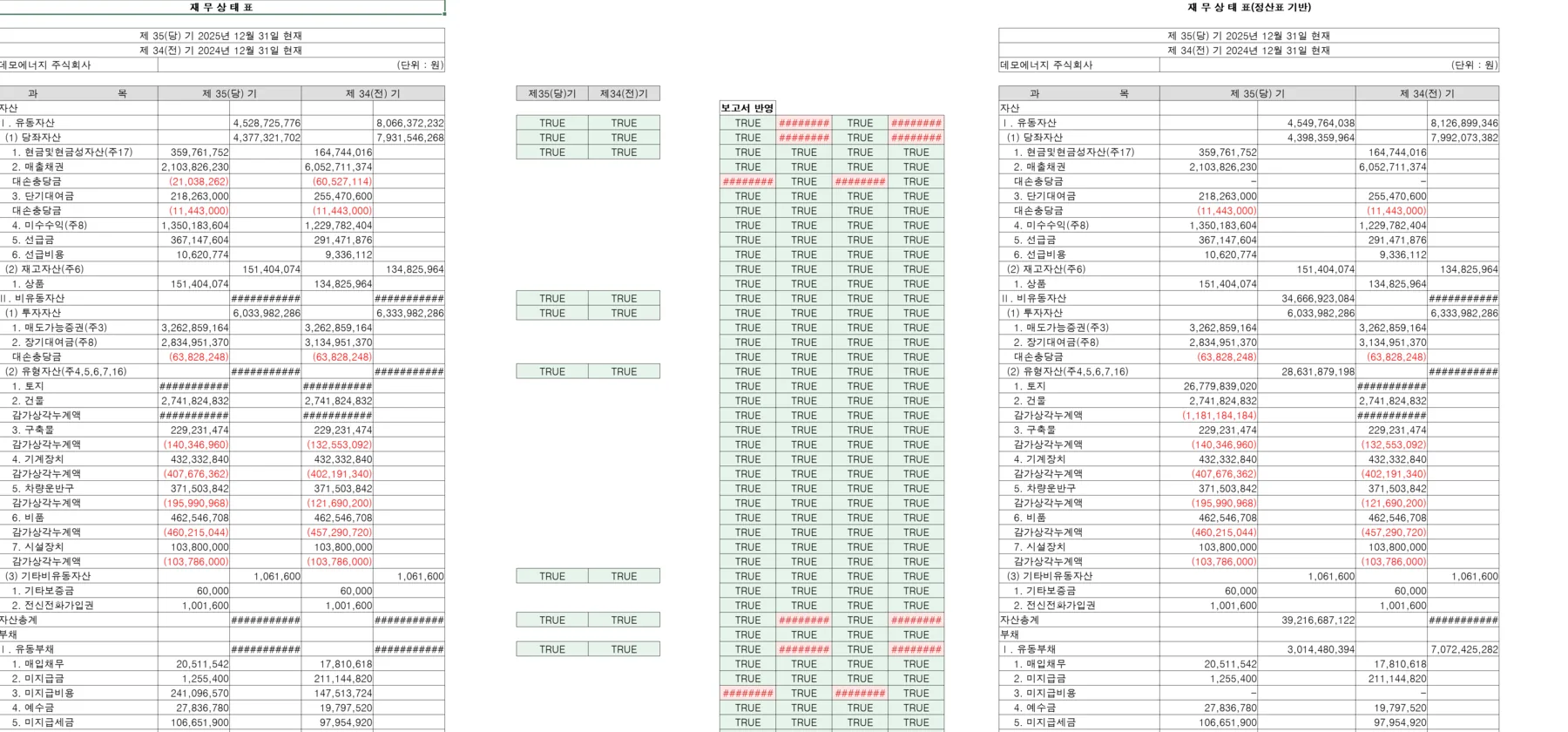
Export the audit-report-to-schedule reconciliation to Excel. Axon shows progress while generating the file, which lists report amounts, schedule amounts, and the match status for each line item.
- 1Select Create Excel on the reconciliation-results screen.
- 2Wait for the conversion progress to complete.
- 3In the generated workbook, review report amounts, schedule amounts, and their match status.
Journal and ledger analysis
Ledger analysis in 24 seconds
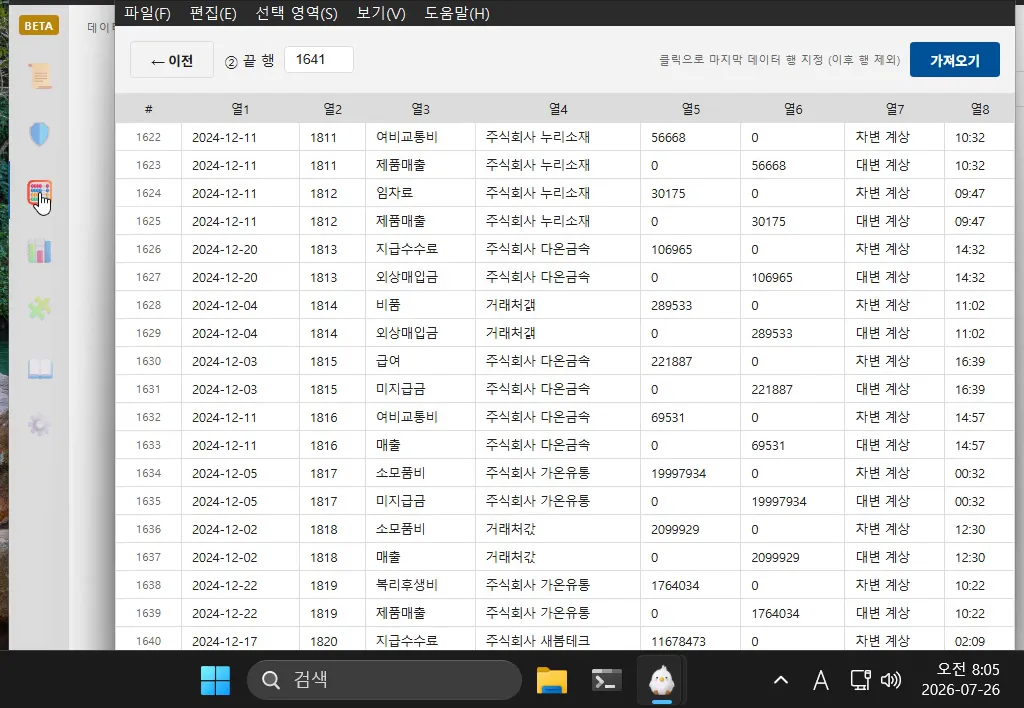
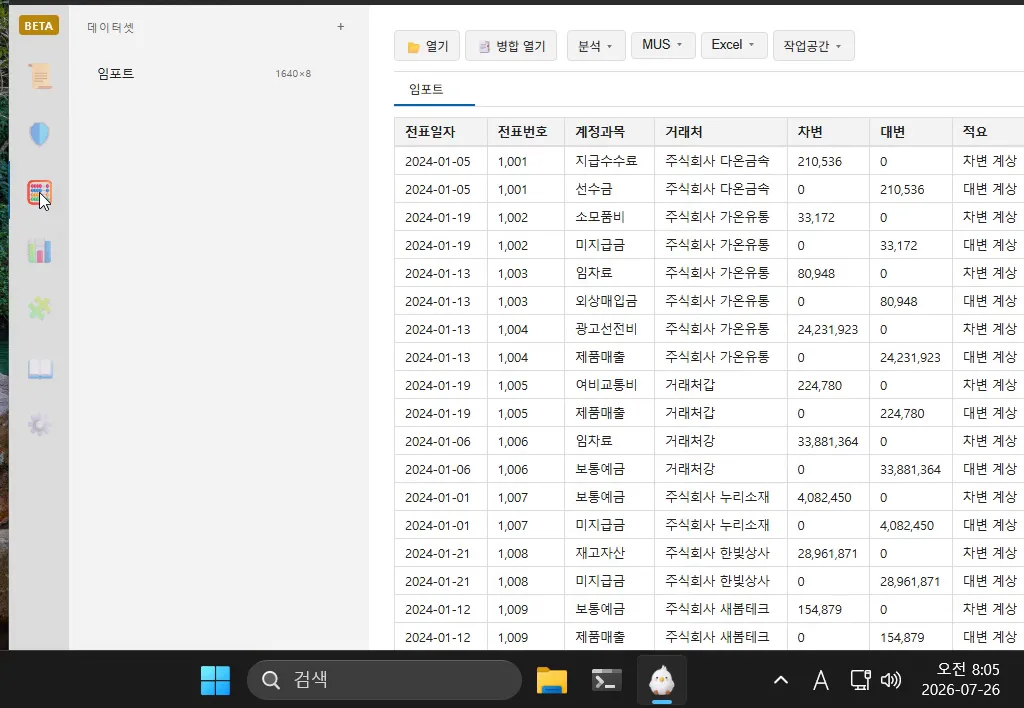
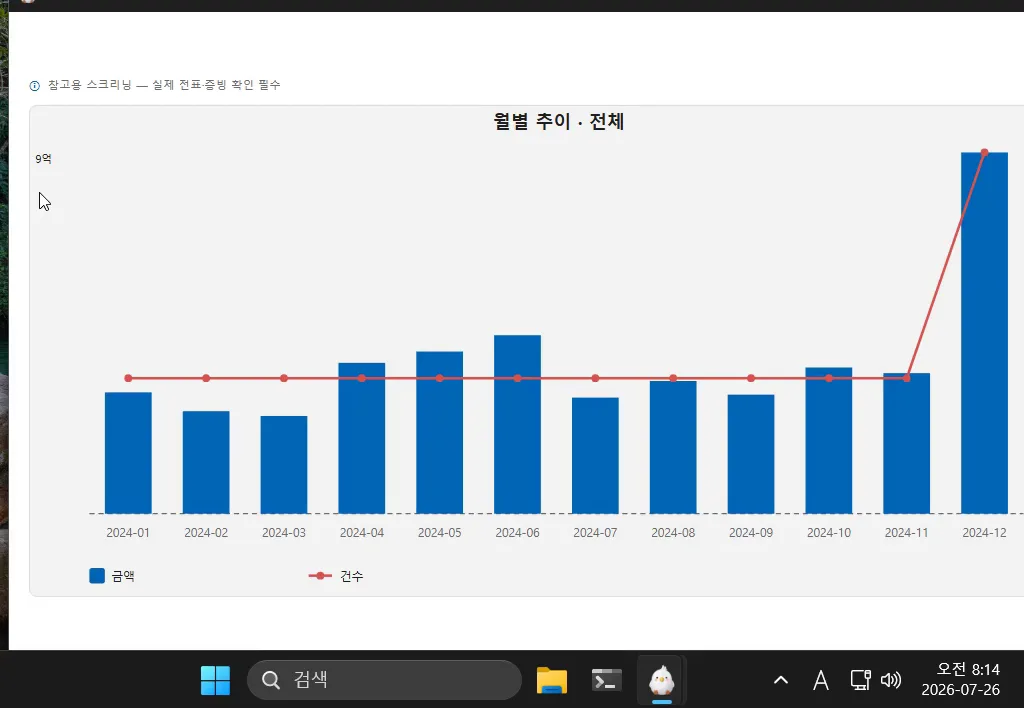
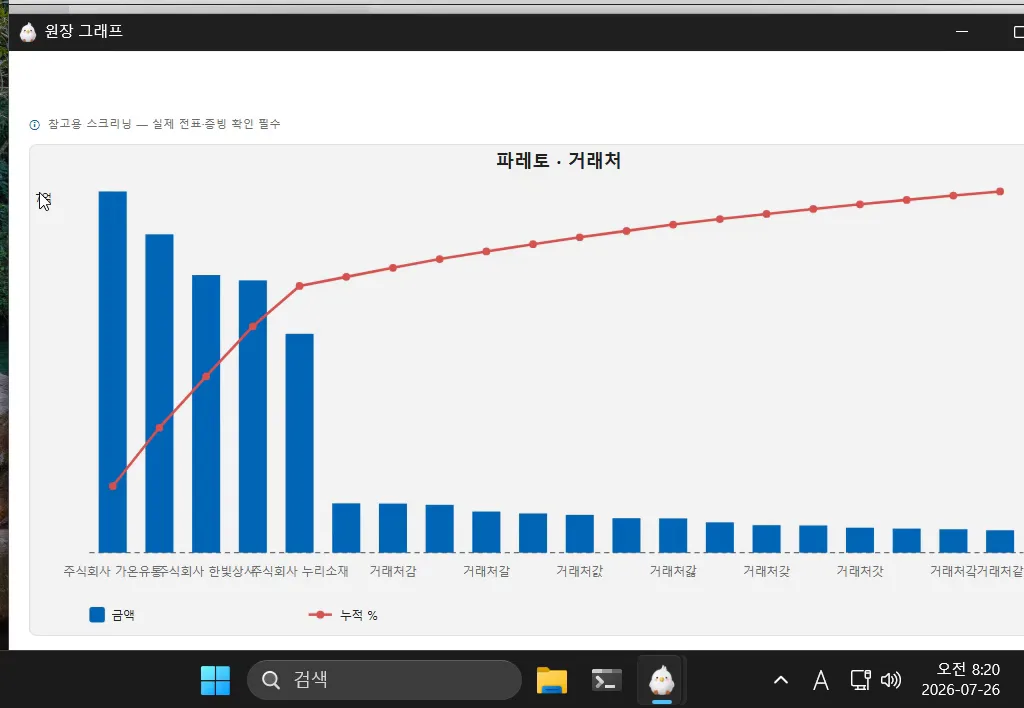
The flow loads 1,640 rows of the fully synthetic ledger, checks the title row, and opens the monthly trend and account Pareto.
Open/Column Mapping/Merge Files
Import CSV or Excel ledgers. In the import screen, specify a title row and columns for date, amount, and summary. Files divided by month can be created into one data set by ‘combining and opening multiple ledgers’.
- 1Select ‘Open Ledger File’.
- 2Specify the title row and columns to use for analysis.
- 3Check the preview and complete the import.
Ledger standardization
‘Ledger standardization’ organizes the Douzone account-specific ledger (.xls) or ERP ledger (CSV) into a standard table and verifies the totals for each account. If there is no document number in the original, a sequential number is assigned, and the detected form, number of transaction rows, and mismatched accounts can be checked on the results screen.
Overlap, Pivot, Monthly Trend, Pareto
Track original transactions by displaying duplicate values and pivoting, and compare the number and amount of transactions by account in monthly trends. Pareto analysis shows the amount and cumulative ratio for each customer and account.
distribution analysis
Compares the first digit of the amount with the expected distribution from Benford's law and looks for transactions with a constant number of ending digits.
calculation column
Add derived columns such as debit−credit as calculated columns and use them for verification. The calculation results are added to the current workspace and do not change the original file.
MUS (Monetary Unit Sampling)
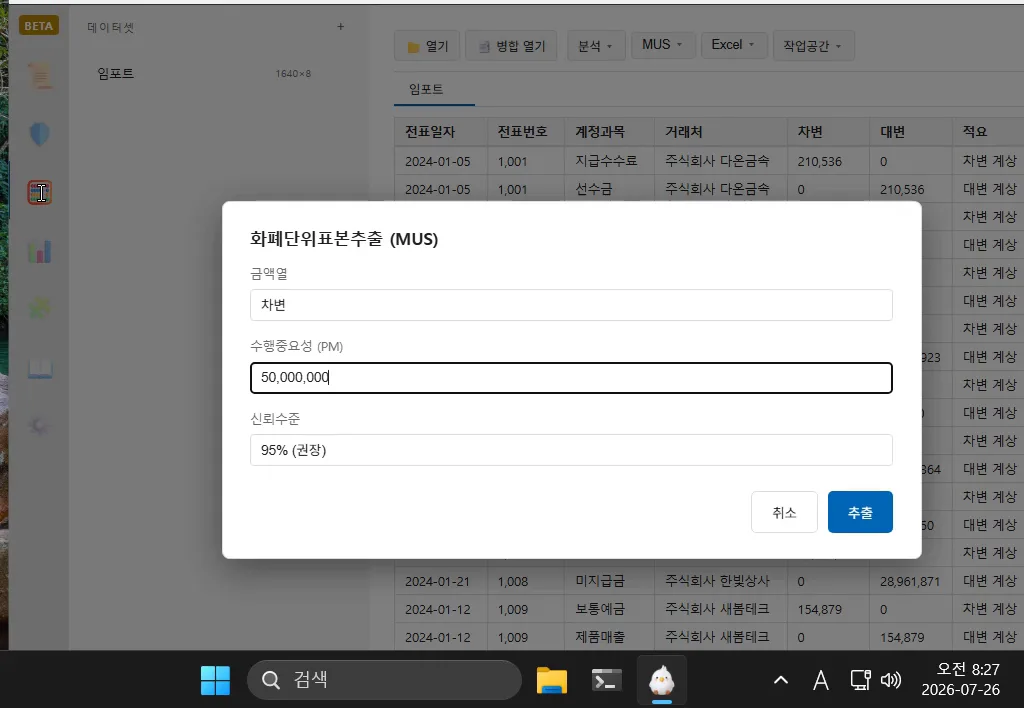
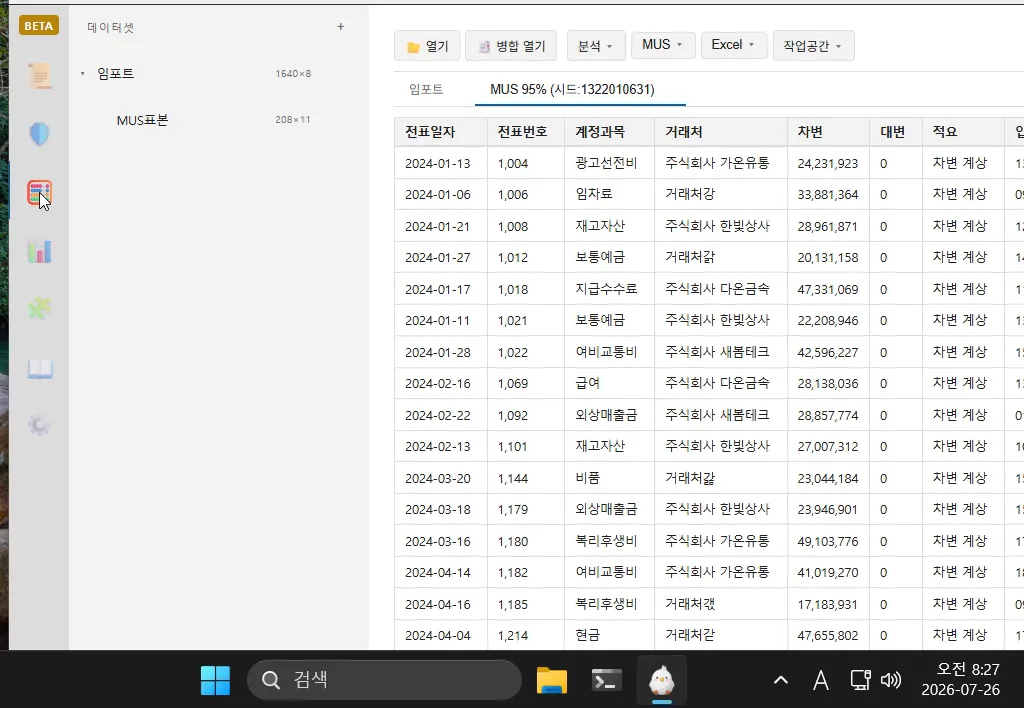
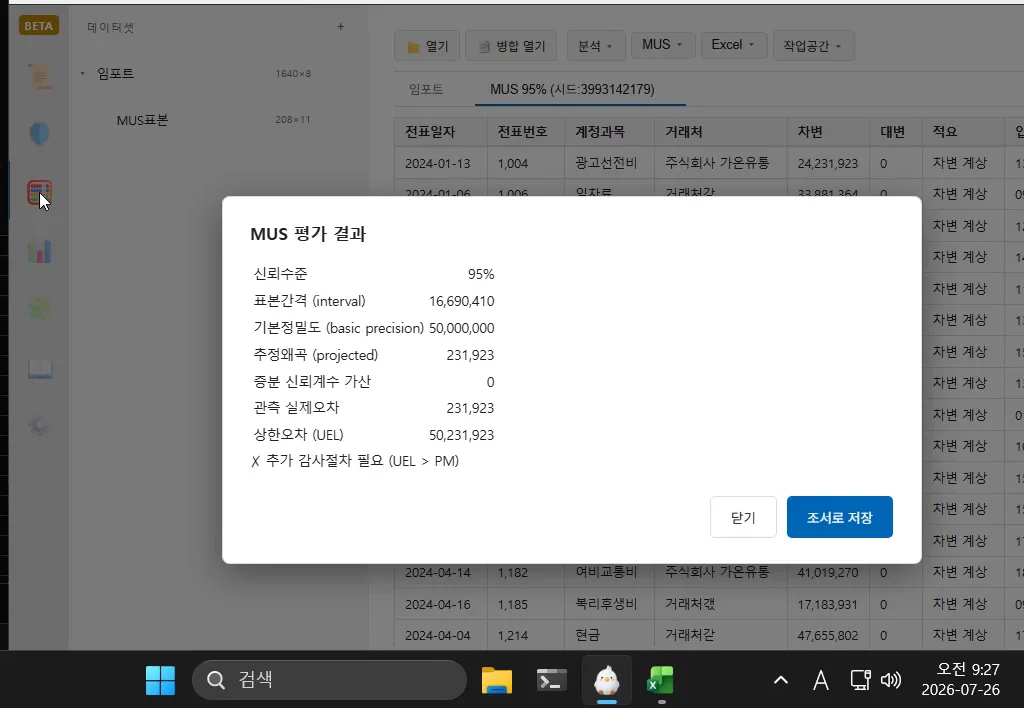
Extract a monetary sample by specifying an amount column, importance amount, and confidence level. Enter the audit confirmation amount of the sample and the upper error limit (UEL) and decision result will be calculated.
- 1Select 'MUS' and specify the Amount column.
- 2Enter the importance amount and confidence level to extract a sample.
- 3In 'MUS Assessment', enter the audit confirmation amount and check the results.
MUS ↔ Windows Excel Live Roundtrip
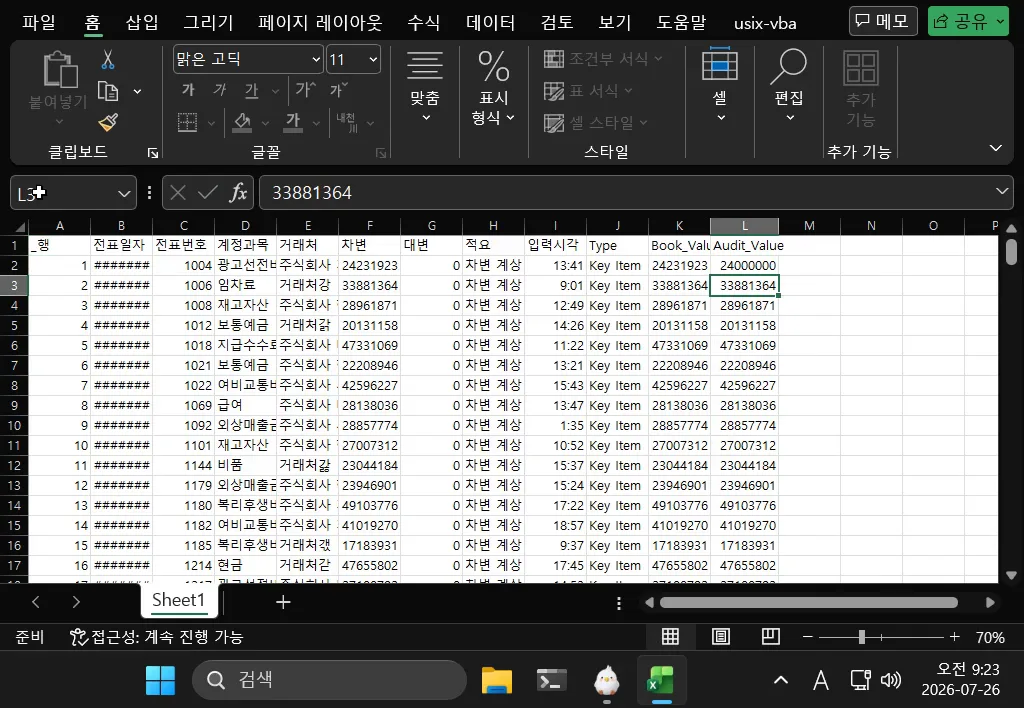
Extracted samples are sent to running Excel, entered with audit confirmation amounts, and returned to Axon for evaluation. The video shows the process of modifying the audit value of the first sample and then reflecting the recovery result in the upper error limit.
- 1After extracting the MUS sample, select ‘Send Live’ from the Excel menu.
- 2Enter the audit confirmation amount in the Audit_Value column in Excel.
- 3Run a 'live recall' on Axon and check the MUS evaluation results.
Counter-entry extraction
The 'Counterbalance Statement' button analyzes the debit/credit counterpart accounts of a specific account to identify abnormal transaction patterns.
Save/open workspace
You can save the entire currently loaded dataset and analysis status as multi-sheet Excel, and reopen it later to continue work.
export
Click ‘Export…’ on the right side of the toolbar. 'Save the analysis results of the current screen as PDF, Excel, or CSV.
OpenDART financial statement inquiry
Authentication key registration and company inquiry
After registering the OpenDART authentication key in settings, search publicly disclosed financial statements by company name or item code. You can check the query conditions and selected report period on the left side of the screen.
- 1Register the OpenDART authentication key in settings.
- 2Open ‘DART Financial Statement Query’ from the Audit workspace.
- 3Select the company, period, and consolidated/separate criteria to search.
Compare trends across multiple years and multiple accounts
By adding accounts to be compared one by one in the viewed financial statements, you can view amounts from multiple years as a line graph with the same standard.
Internal Accounting (ICFR)
RCM version management
🛡️ 내부회계 대시보드의 'RCM 버전 관리'에서 내부통제 기술서(RCM) 두 버전의 .xlsx 파일을 엽니다. After specifying the control description column to be compared with the control number column, click 'Compare Differences' to organize the added, deleted, or changed controls. Controls with changed numbers are connected based on the similarity of the content and classified as 'number change', and the similarity standard can be adjusted. Results can be saved in Excel. This is a local feature available for free.
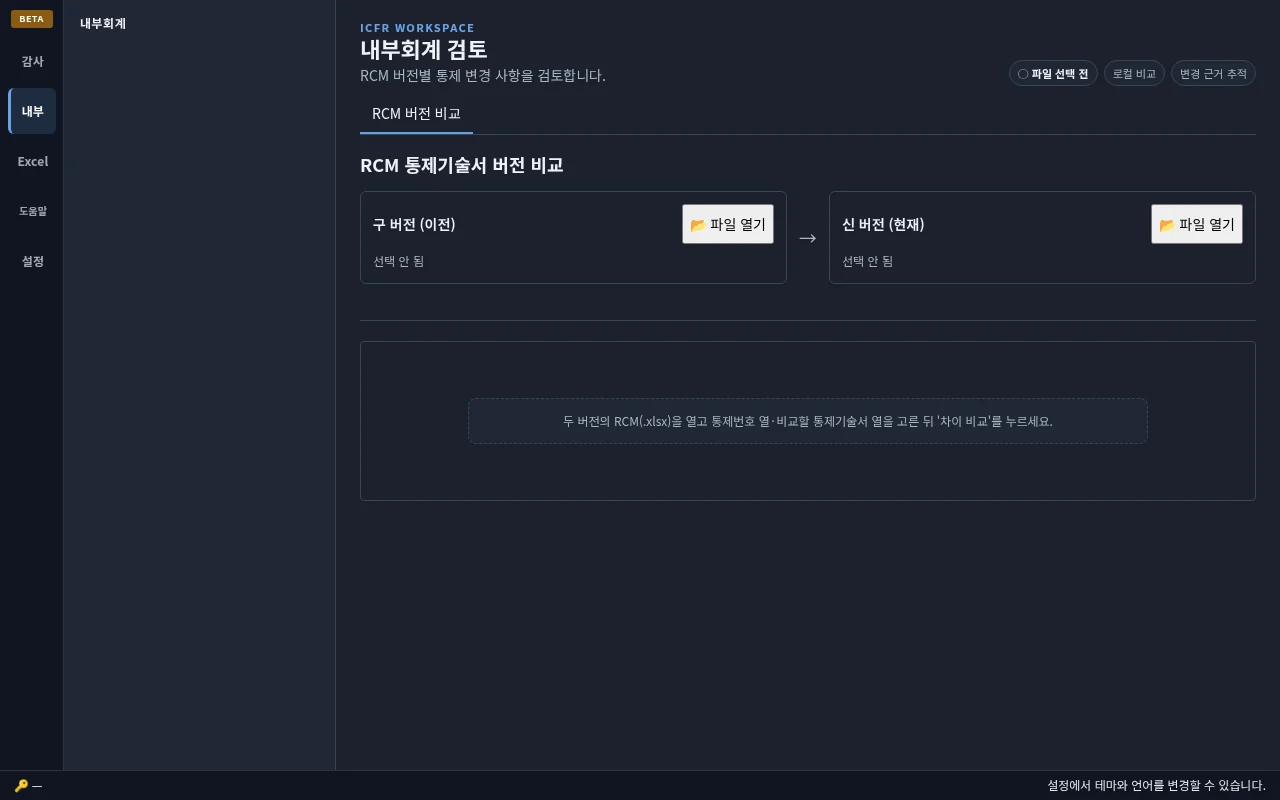
Control Coverage — Account/Management Statement Mapping
Map each RCM control to accounts and management assertions to check control coverage. For marks that apply to both transactions and balances, such as completeness, select the control's scope (transaction process or account balance) to confirm the assertion. The auditor selects an account when there are multiple candidates.
Design and operating evaluationsoma
Soma's paid pilot drafts design-evaluation workpapers from an RCM. Only controls whose design conclusion the reviewer confirms as Pass continue to operating evaluation with samples and evidence. Check the evidence and completeness before saving the XLSX workpaper.
usix-vba — Excel Ribbon Add-in
Install/Delete
Add frequently used functions to the Excel ribbon, such as going back to the previous cell, applying formatting, and sorting sheets. It is only installed to your current Windows user account and can be uninstalled from the same screen.
Soma (paid pilot)soma
Soma overview
Soma is a paid product that analyzes and reconciles ledgers, RCMs, and evidence and drafts workflows and workpapers. Axon is a free public beta that analyzes and validates data using defined rules.
Installation and sign-in
Get the Windows or Linux installer from Soma downloads. The official file host is soma-dl.u-6.xyz.
Pilot workflows
We review the material you already have before agreeing on the pilot scope.
- 1RCM review: Review the validity and evidence of controls in an existing RCM and identify items to check.
- 2Variance analysis and reconciliation: Analyze period-to-period movements and perform three-way reconciliation across worksheets, audit workpapers, and audit reports. Save the results as an XLSX workpaper.
- 3Design and operating evaluation workpapers: Draft design evaluations from an RCM. Only controls whose design conclusion the reviewer confirms as Pass continue to operating evaluation with samples and evidence. Save the results as an XLSX workpaper.
Create process documents from an Excel template
Enter process steps, risks, and controls to create flowcharts, process narratives, and risk-control documents.
- 1Save Soma's Excel authoring template as a new file.
- 2Enter process details, steps, relationships, risks, and controls.
- 3Import the completed workbook to check relationships and lay out the flowchart automatically.
- 4Save the flowchart, process descriptions, and risks and controls as a PPTX. PDF and XLSX are also available.
Responsibilities
The model writes the narrative. Code computes the numbers.
- 1The AI model reads attached material and drafts narrative text, such as reasons for movements and control descriptions.
- 2Verified code computes amounts, totals, and reconciliations and writes them into the workpaper template. Model-calculated numbers never go into deliverables.
- 3The reviewer confirms exceptions and conclusions. Until then, outputs remain unapproved drafts.
Data handling
Soma uses only AI models operated by Propsol or in your environment. Requests are not sent to public AI services.
- 1Customer servers and internal networks are the preferred deployment options for enterprises.
- 2Soma's processing location, operational retention, and training participation are explained and agreed separately. Training participation is OFF by default.
- 3Axon's files and usage records are not automatically sent to Soma.
setting
common
Change the theme (dark/light), font size (10~30px slider), and language (Korean/English). Everything is reflected immediately.
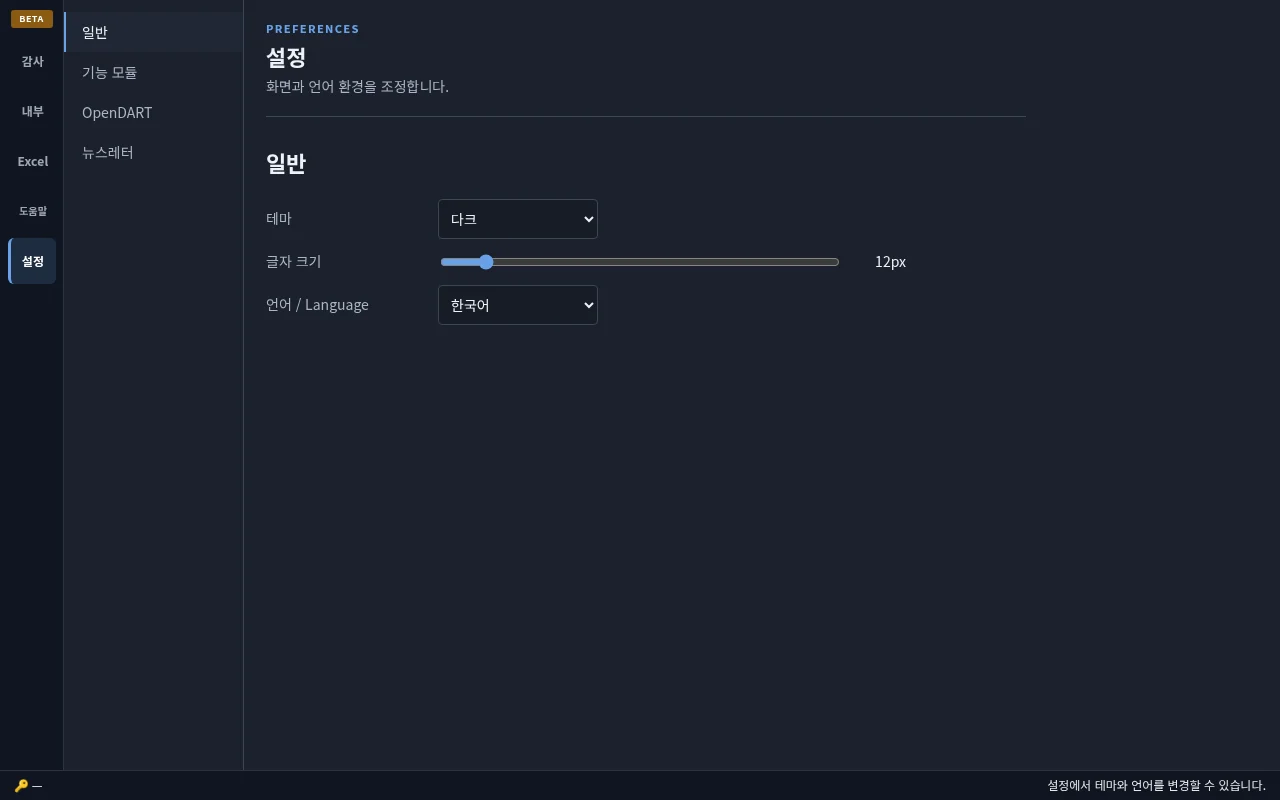
function module
You can clean up the left function bar by turning off unused function modules. Even if you turn off the function, your data will be preserved. Detailed functions such as MUS Excel export/import are also set here.
OpenDART Authentication Key · Newsletter
You can save or delete OpenDART authentication keys. Subscribe to our newsletter and receive new versions and updates by email. Subscription is optional and must be completed by clicking the confirmation link in the email you received. You can cancel at any time thereafter.
Report an error
Open feedback from Help and review the content. Reports are sent only when you choose 'Send directly' or send them by email; error reports are never sent automatically.
inquiry: yjw@propsol.co.kr